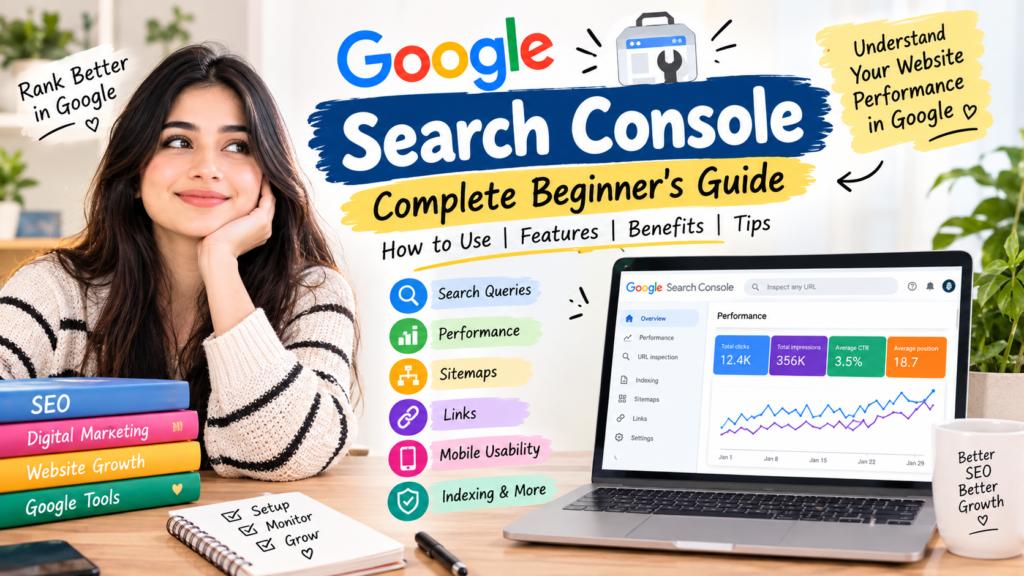
What Is Google Search Console?
Google Search Console (GSC) is a free web service provided by Google that enables website owners, marketers, and developers to monitor, maintain, and troubleshoot their presence in Google Search results. While Google Analytics focuses on user behavior after visitors arrive on your website (page views, session duration, conversions), Google Search Console focuses strictly on what happens before a user reaches your site: crawling, indexing, search queries, rankings, and click-through rates.
Whether you manage an enterprise e-commerce platform, a corporate portfolio, or an independent content blog, Search Console is the definitive source of direct, first-party organic performance data from Google’s search algorithms.
Setting Up and Verifying Your Property
To access your website’s data, you must create a property and verify that you own or administer the domain.
1. Domain Property vs. URL-Prefix Property
-
Domain Property (Recommended): Tracks all subdomains (
example.com,blog.example.com,shop.example.com) and all protocols (http://andhttps://) under one single dashboard. This requires verification via DNS TXT record through your domain registrar (such as GoDaddy, Namecheap, or Cloudflare). -
URL-Prefix Property: Monitors only a specific address variant (e.g.,
[https://example.com/](https://example.com/)or[https://example.com/blog/](https://example.com/blog/)). It supports multiple instant verification methods:-
Adding an HTML verification tag to your homepage header.
-
Uploading an HTML verification file to your web server’s root folder.
-
Verifying through an existing Google Tag Manager container or Google Analytics 4 tracking script.
-
Utilizing WordPress SEO plugins (such as Rank Math or Yoast SEO) to paste the verification token directly into your settings.
-
2. Submitting Your XML Sitemap
Once verified, your first administrative action should be submitting your XML sitemap under the Sitemaps tab. Entering your sitemap index path (e.g., sitemap_index.xml) ensures Googlebot systematically discovers, parses, and crawls all current and newly added URLs without delay.
Core Reports & Features Explained
1. The Performance Report
The Performance dashboard serves as the central hub for organic keyword and page analytics. It visualizes your search presence using four fundamental metrics:
-
Total Clicks: The exact count of search users who clicked on your listing to visit your website.
-
Total Impressions: How many times a URL from your domain appeared in search results for a user query, regardless of whether it was clicked.
-
Average CTR (Click-Through Rate): The percentage of search impressions that led to a click (
$$\text{CTR} = \frac{\text{Clicks}}{\text{Impressions}} \times 100$$).
-
Average Position: The average ranking position of your URLs for specific queries (e.g., positions 1–10 correlate with Page 1 of search results).
Below the performance chart, you can segment this data across six distinct dimensions: Queries (the exact phrases typed by users), Pages (the landing pages receiving impressions), Countries, Devices (Mobile vs. Desktop), Search Appearance (rich snippets, video thumbnails), and Dates.
2. The URL Inspection Tool
Located directly at the top of the interface, the URL Inspection tool allows you to input any individual URL to check its real-time index status. It reveals:
-
Whether the URL is currently indexed on Google.
-
Which Googlebot crawler accessed it and when it was last crawled.
-
The declared canonical tag versus the Google-selected canonical URL.
-
A Test Live URL button to evaluate live rendering, mobile styling, and code execution.
-
A Request Indexing button to fast-track crawling for newly published or heavily updated pages.
3. Page Indexing Report
The Indexing report segments all URLs discovered on your domain into Indexed (visible in search) and Not Indexed (hidden from search). For pages that are not indexed, Google categorizes the exact technical cause, including:
-
Discovered – currently not indexed: Google knows the URL exists, but has not yet crawled it due to crawling budget constraints or site architecture priorities.
-
Crawled – currently not indexed: Googlebot successfully crawled and evaluated the page, but decided not to add it to the search index, frequently due to thin content, duplicate value, or weak topical authority.
-
Page with redirect / Excluded by ‘noindex’ tag: URLs intentionally excluded from the index through redirect chains or canonical/robots meta tags.
-
404 (Not Found): Broken internal or external links returning missing-page status codes.
4. Experience & Core Web Vitals
Search engines prioritize user experience alongside relevance. This section grades your real-world performance using Chrome User Experience Report (CrUX) field data:
-
Core Web Vitals: Evaluates your URLs on mobile and desktop against technical performance standards:
-
LCP (Largest Contentful Paint): Measures loading speed and perceived rendering time.
-
INP (Interaction to Next Paint): Measures responsiveness and interface latency upon user interaction.
-
CLS (Cumulative Layout Shift): Measures visual stability and unpredictable page shifts.
-
-
Page Experience: Confirms whether your URLs adhere to HTTPS security protocols and offer friction-free layouts for mobile visitors.
5. Enhancements and Structured Data
When you implement Schema.org markup (such as Article, FAQ, Product, Recipe, or Breadcrumb schemas), this section verifies that Googlebot correctly interprets the syntax. It warns you of missing required or recommended attributes, ensuring your listings qualify for rich results and interactive search features.
6. Security & Manual Actions
-
Manual Actions: If a human reviewer at Google determines your site violates Google’s Search Essentials (such as buying spam backlinks, keyword stuffing, or cloaking), a penalty notification appears here.
-
Security Issues: Flags security threats such as malware, code injections, deceptive phishing pages, or compromised server software.
Actionable SEO Workflows Using GSC
| Objective | GSC Report Used | Strategic Action |
| Capture “Low-Hanging Fruit” | Performance → Queries | Filter for queries with an average ranking position between 8 and 20 with high impressions. Update your content to directly answer those queries and add relevant internal links to move into the top 5 results. |
| Boost Low Click-Through Rates | Performance → Pages | Identify URLs that have high impressions and solid positions (top 1–5) but poor CTR. Rewrite and optimize their SEO Title and Meta Description tags with compelling copy and clear hooks. |
| Resolve Cannibalization | Performance → Filter Query | Filter by a high-value keyword and navigate to the Pages tab. If two or more separate URLs are competing for impressions on that single keyword, consolidate the content or establish clear canonical tags. |
| Accelerate New Content Indexing | URL Inspection | When launching a critical new product or blog article, inspect the URL and click Request Indexing to bypass standard crawl discovery intervals. |
| Audit Link Architecture | Links | Inspect external backlinks to discover which third-party sites link to you, and analyze your internal link structure to verify that your most important commercial pages receive sufficient internal authority. |
Google Search Console: Complete Beginner’s Guide
Google Search Console (GSC) is a free Google tool that helps website owners understand how their website appears in Google Search, monitor search performance, identify indexing issues, and troubleshoot certain technical SEO problems.
1. What is Google Search Console?
Google Search Console helps you monitor and improve your website’s presence in Google Search.
With GSC, you can see things such as:
- How many times your pages appeared in Google Search
- How many clicks your pages received
- Which search queries brought visitors
- Which pages are indexed
- Indexing problems
- Sitemap status
- Mobile and page experience signals
- Links pointing to your website
2. Why is Google Search Console Important?
For a website such as Vaishnavikashyap.com, GSC can help you understand which articles are getting visibility and which pages may need improvement.
Main benefits
- Monitor organic search performance
- Find the keywords people use to discover your pages
- Check indexing
- Submit sitemaps
- Identify crawling/indexing issues
- Find pages with search visibility
- Monitor Core Web Vitals
- Check internal and external links
3. Important Google Search Console Reports
Performance
The Performance report shows how your website performs in Google Search.
Important metrics include:
Clicks – How many times users clicked your result.
Impressions – How many times your result was shown in Google Search.
CTR – The percentage of impressions that resulted in clicks.
Average position – The average position of your search result for the queries measured by Search Console.
Example
Suppose your article appears in Google 1,000 times and receives 50 clicks.
CTR = 5%
4. Search Queries
GSC shows the search queries associated with your website’s search performance.
For example, your digital-marketing website might receive impressions for:
- digital marketing for beginners
- what is digital marketing
- SEO for beginners
- AI marketing tools
- email marketing
- Google Search Console
This information can help you understand what people are searching for when they encounter your website.
5. Pages Report
The Pages section helps you see which pages are receiving search traffic and impressions.
For example:
| Page | Clicks | Impressions |
|---|---|---|
| Digital Marketing Guide | 120 | 3,500 |
| SEO Beginner Guide | 80 | 2,100 |
| AI Marketing Tools | 65 | 1,800 |
You can use this information to identify pages that may deserve further content improvements.
6. URL Inspection Tool
The URL Inspection tool lets you check an individual URL.
You can use it to understand whether Google has information about the URL in its index and to inspect certain indexing-related details.
Example
If you publish:
vaishnavikashyap.com/on-page-seo
You can enter the URL into URL Inspection to check its status.
7. Request Indexing
After publishing or substantially updating a page, you can use URL Inspection to request that Google crawl the URL.
However, requesting indexing does not guarantee immediate indexing or inclusion in Google Search.
8. Sitemap
A sitemap helps search engines discover URLs on your website.
A common WordPress sitemap URL looks like:
yourwebsite.com/sitemap_index.xml
or another sitemap URL generated by your SEO plugin.
You can submit the sitemap in:
Google Search Console → Sitemaps
9. Indexing
The Indexing reports help you understand which pages Google has indexed and which pages have issues.
Common reasons a URL may not be indexed include:
- Duplicate content
- Redirects
noindexdirectives- Server problems
- Crawling issues
- Google deciding the page isn’t currently appropriate for indexing
Not every URL on a website needs to be indexed.
10. Core Web Vitals
Google Search Console includes a Core Web Vitals report.
It focuses on real-world page experience measurements related to:
- Loading performance
- Responsiveness
- Visual stability
Improving these can contribute to a better user experience.
11. Mobile Usability
Your website should work well on mobile devices.
Check:
- Text readability
- Buttons and links
- Page layout
- Horizontal scrolling
- Navigation
A large number of website visitors use mobile devices, so mobile-friendly design is important.
12. Links Report
GSC provides information about links associated with your website.
You can examine:
Internal links
Links from one page of your website to another.
External links
Links from other websites to your pages.
Top linked pages
Pages that receive links.
Internal linking is especially useful when building a beginner-friendly content website.
13. Manual Actions
Google Search Console can notify website owners if Google has applied a manual action to a site because of certain violations of Google’s spam policies.
If a manual action appears, GSC provides information about the issue and possible next steps.
14. Security Issues
GSC can also report certain security problems affecting your website.
For example, it may alert you about issues such as:
- Hacked content
- Malware
- Phishing-related problems
If you receive a security warning, investigate it promptly.
15. Google Search Console vs Google Analytics
These two tools serve different purposes.
| Google Search Console | Google Analytics |
|---|---|
| Focuses on Google Search | Focuses on website/app behavior |
| Search queries | User behavior |
| Impressions | Sessions/users |
| Search clicks | Engagement |
| Search position | Conversions/events |
| Indexing information | Traffic sources |
Simple difference:
Search Console = How people find you through Google Search
Analytics = What people do after they visit your website
16. How to Set Up Google Search Console
Step 1
Open Google’s Search Console service.
Step 2
Sign in with your Google account.
Step 3
Add your website as a property.
Step 4
Choose a verification method.
For many website owners, Domain verification through DNS is useful because it covers the whole domain.
Step 5
Verify ownership.
Step 6
Submit your sitemap.
Step 7
Start monitoring your reports.
17. How to Use GSC for Your Blog
For your digital marketing beginner website, you can use this simple workflow:
Publish article → Submit sitemap → Check indexing → Monitor queries → Check impressions → Analyze CTR → Improve content → Monitor again
For example, if your article “What Is Digital Marketing?” gets many impressions but relatively few clicks, you could review its title and search-result description to see whether they accurately and clearly communicate the article’s value.
18. Important GSC Terms
Query: The search term associated with your site’s appearance in Google Search.
Click: A click from Google Search to your website.
Impression: Your result was displayed in Google Search.
CTR: Click-through rate.
Position: Average search position reported for your site’s results.
Crawl: When Google’s systems access a URL to discover or process content.
Index: Google’s stored collection of webpages it knows about and may be able to show in Search.
Sitemap: A file that helps search engines discover URLs.
Pingback: 7 Easy & Powerful Google Ad Account Login Steps to Avoid Common Problems
Pingback: Google Search AI Mode: 11 Powerful Benefits & Problems